

1. Navigate to Landing Pages
- Log into the Wyred Insights platform
- From the left-hand menu, click Landing Pages
- You’ll see a list of existing landing pages
Helpful sorting tips:
- Sort by Title (alphabetical)
- Sort by Campaign Focus
- Sort by Creation Date (recommended – most commonly used)

Choose the existing landing page that most closely matches what you’re advertising (location, role, or shift)
2. Clone the Existing Landing Page
- Locate the landing page you want to duplicate
- Click the three-dot action menu on that page
- Select Clone
- Confirm the clone
The system will automatically create a duplicate landing page

3. Open and Edit the Newly Cloned Page
- Sort landing pages by Latest Created
- Click into the newly cloned landing page
Most settings will already be configured correctly. Only a few fields need to be updated.
4. Update the Required Fields (MOST IMPORTANT)

A. Campaign Focus
- Select the campaign focus that best matches the new campaign (e.g., city, role, or specialty)
- Example: Weekend – Las Vegas, or AM Shift – Summerlin
If the correct campaign focus does not exist:
- Go to Settings → Field Options
- Create the campaign focus first
- Return and select it here

B. Page Name (Title)
Rename the page so it’s clearly identifiable internally.
Best practice naming examples:
- Indeed – Las Vegas
- Indeed – AM Shift – Las Vegas
- Indeed – Weekend Caregiver – Las Vegas
This name is primarily for internal organization and reporting.
5. (Optional) Update the URL Slug
- You may update the slug to something easy to recognize
- Example:
am-summerlinweekend-caregiver-vegas
This is optional and mainly helps with backend clarity
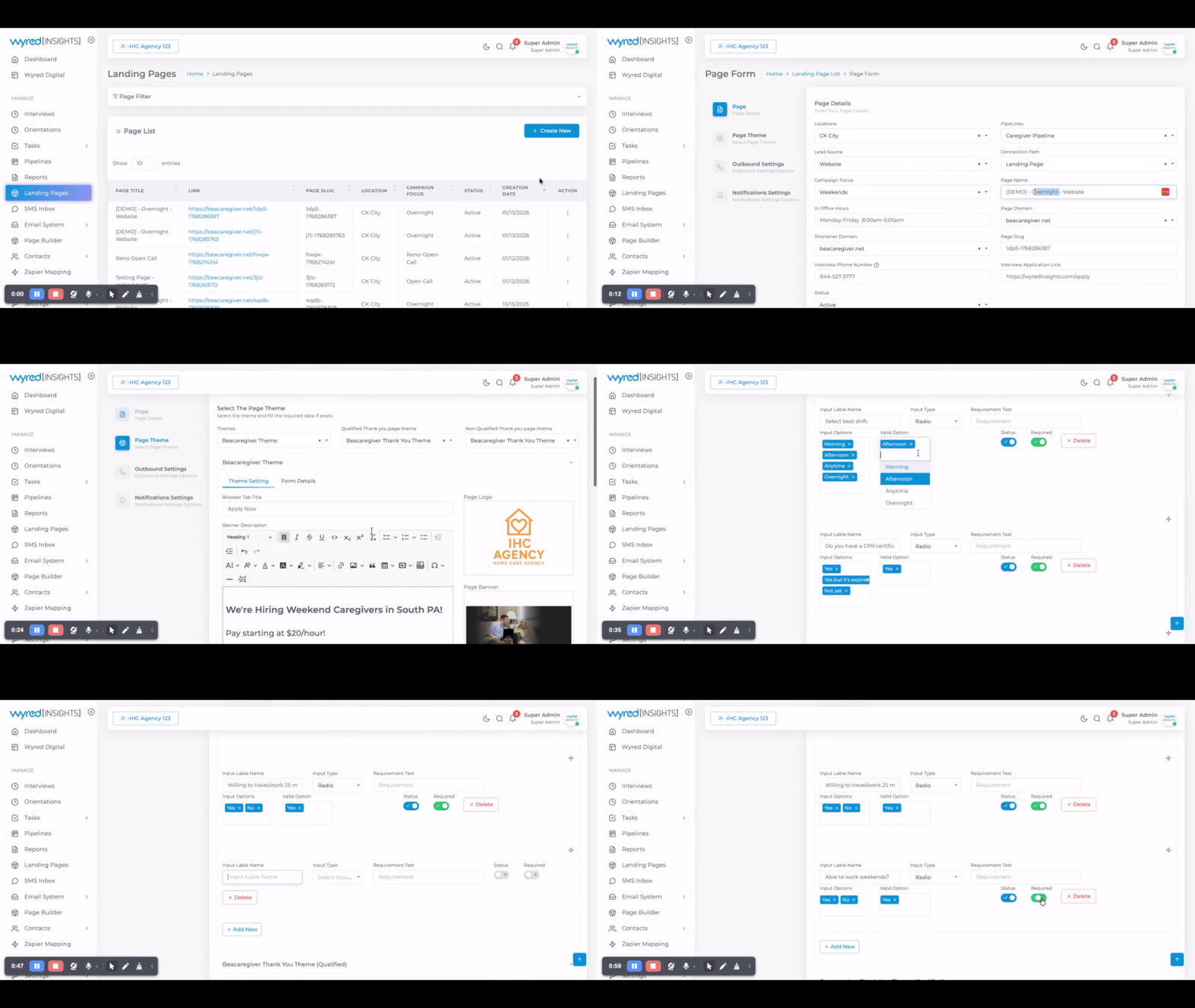
6. Review & Edit Page Content (If Needed)
Headline & Verbiage
- Match the landing page headline to the ad headline
- Example:
- “Hiring Caregivers in Las Vegas – Apply Now”
- “AM Caregiver Shift Available in Las Vegas”
You may add location-specific or shift-specific language if needed, or discuss what benefits are in it for them.
7. Add or Adjust Form Questions (Optional)


You can add qualifying questions if needed, such as:
- “Are you located in or willing to work in Las Vegas?”
- “Do you understand this shift is located in Las Vegas?”
Best practices:
If all answers are acceptable, leave the Valid Option field blank
Form limits:
- Ideal: 5–8 questions
- Maximum recommended: 10 questions
You can reorder questions as needed
8. Leave Automation & Notifications Alone
- Thank You pages
- Automations
- Notification settings
✅ Do not change these – they are already fully automated
9. Submit & Publish
- Click through the remaining steps
- Save the landing page
Your new landing page is now Active (live)
10. Copy the Landing Page Link
- Copy the landing page URL
- Paste this link directly into Indeed (or other ad platforms)
This is the link candidates will use to apply.
Final Checklist:
✅ Correct campaign focus selected
✅ Page name clearly labeled
✅ Headline matches ad messaging
✅ Optional qualifying questions reviewed
✅ Automations untouched
✅ Link copied for ad placement